Back to Shipper Hub
HIVED dashboard guide
Intro
The HIVED Dashboard gives teams end-to-end visibility of parcel status across the network. From one place, teams can access all parcel-level information - proof of delivery, status, claims, support tickets, and more - making customer query management fast and seamless.
Parcels page
The parcels page provides a full overview of all your parcels in the network as well as their status, which you can easily filter using the buttons in the top left corner, or by searching via the search bar.

Create parcel
For teams with lower parcel volumes, or those needing to create a parcel label as a one-off, the Create Parcel feature is available. The button in the top right corner lets you enter the relevant parcel details and generate a PDF or ZPL label.


CSV upload
Alternatively, parcels can be digitally uploaded into your HIVED One dashboard for label generation via CSV.
To get started:
Select ‘Create parcel’ > ‘CSV upload’ at the button in the top right (step 1 below)
Please download the template linked above and format your upload to match it exactly. Keep the column headers exactly as shown in the template, since any changes could cause issues when we process your file.
Continue by following the steps as outlined below.


Delivery panel
Once a parcel is selected in the HIVED Dashboard, the delivery panel expands to display all parcel-level information. Multiple tabs are available for review, including Delivery Details, Delivery Communication, Support Tickets, and Claims. The panel also provides access to tracking events, customer-provided delivery instructions, and proof of delivery once the parcel has been successfully delivered.
Before delivery:

After delivery:

Delivery communication
The Delivery Communication gives you visibility into any phone interactions (call and SMS) between the driver and recipient during a delivery attempt. Call details and the conversation are automatically summarised, so dashboard users can review them at a glance. This makes it easy for your team to look closely into a specific delivery attempt - for example, confirming whether a safe place was requested over the phone.

Support tickets
Opening the delivery panel will also provide direct communication access to our HIVED Customer Support team. To raise a ticket with our team, toggle to the Support Tickets tab of the Delivery panel, where you'll be taken to a ticket portal for the parcel selected. This feature can be used for any parcel-level queries you may have, and our team will be ready to help. You can generally expect a response in under 30 minutes, from 9am to 7pm, seven days a week (Monday to Sunday).


Claims
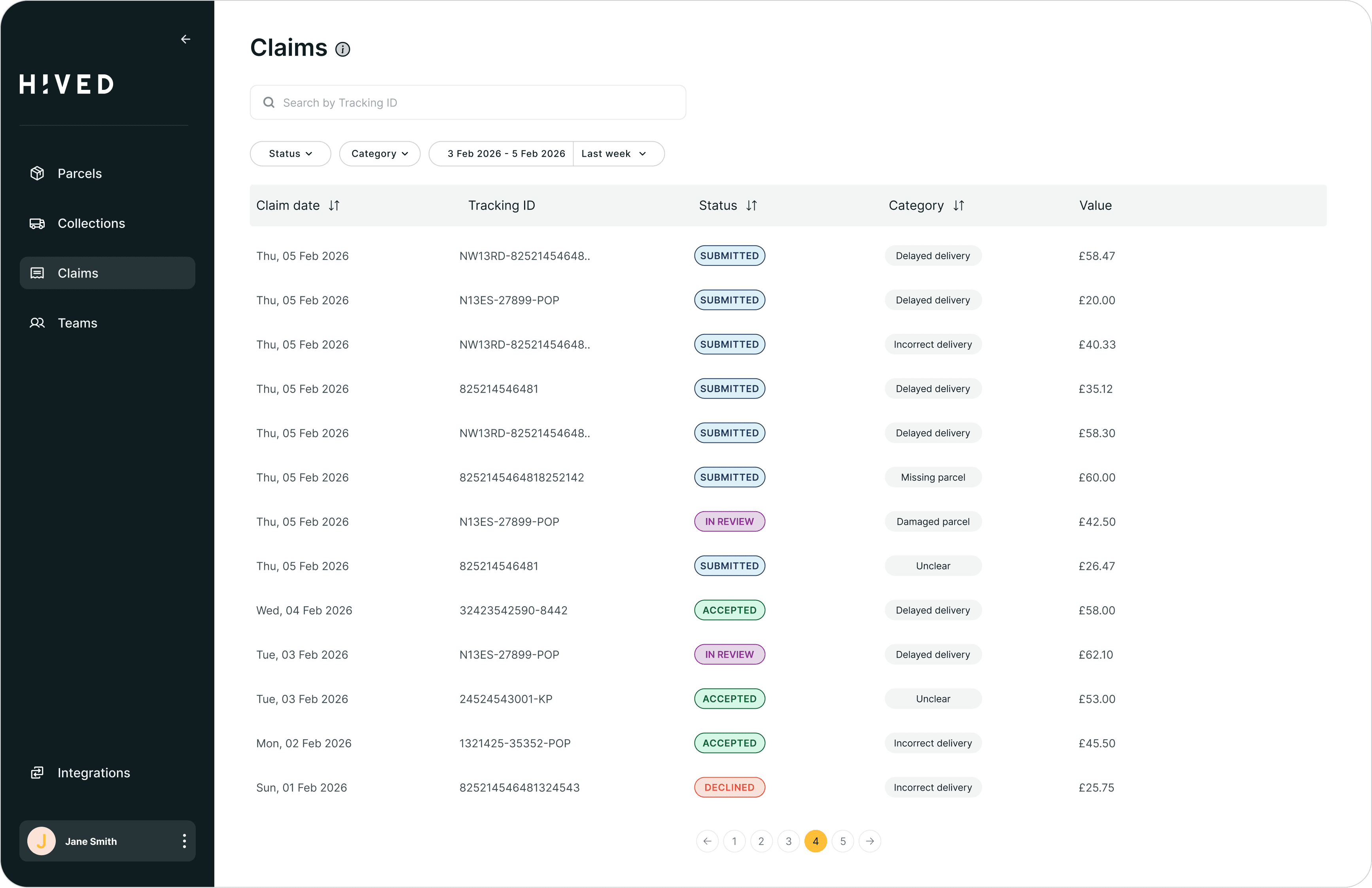
The Claims tab gives you a focused view of claims raised, including their status: pending, approved, or denied. Search by tracking ID to bring up a parcel's claims record if you need a status update, and click into the record for further details about the claim - including reasons for why it is approved or denied.

Ticket best practices
Using the right communication channel helps ensure your queries are resolved as quickly and accurately as possible. Below are some tips on when to use the ticket feature versus the claims feature.
When to raise a claim
If a recipient reports that their parcel has not been delivered as expected and would like to request reimbursement, you can raise a claim.
There is no need to open a support ticket before submitting a claim. Once you have reviewed the POD and coordinates and determined that a claim is warranted, you can submit it directly without prior approval or review from the Customer Support team.
HIVED will review the claim and provide an update on its status, along with any relevant context.
When to raise a ticket
Conversely, if the parcel is still within the HIVED network (i.e. not yet delivered), we recommend raising a ticket with our Customer Support team instead. While a parcel is still in transit, raising a ticket allows our support team to act on live information and assist you right away.
If you are passing along recipient feedback following a delivery, please clearly state whether any further action is required and specify the resolution you are requesting.
Return to sender
If a parcel hasn't been delivered yet and needs to be sent back, a "Return parcel to sender" button will be available in the Support Tickets tab. This lets your team recall the parcel directly - even if it's already out for delivery with the driver.

Collections
The Collections page will be your port of call to monitor any upcoming collections or those already in progress. This includes vehicle and driver details, as well as live tracking of the driver on their way to the warehouse.
The various features at the top of this page enable your team to review listed collection locations and recurring collection details.


Access management
Dashboard admins can now control what each teammate can see and do by assigning a role. There are four roles to start with - Standard, Customer Support, Collections Manager, and Admin - each automatically setting the right permissions for that function.


Once invited, your team members will receive an email with a login link to create a password and sign in to the HIVED Dashboard.

Best practices
Shared below are some best practices when using the HIVED Dashboard and recipient tracking page:
1.
If you would like to make any changes on the recipient’s behalf, access their tracking page and make use of the in-flight options from there
2.
To get a quick view of parcels on the road in a given moment, filter by tracking status “Out for delivery”
3.
Export current conditions view to csv for further analysis


" height="18px" id="WXhVeA1oH" transform="translate(4.16 3)" width="15.680039999999998px"/></svg>)
" height="18px" id="B9Ck5Ljyr" transform="translate(3 3)" width="18px"/></svg>)
" height="18px" id="v2_jQqFYe" transform="translate(3 3)" width="18px"/></svg>)